Build a RAG Chatbot with Next.js: Step-by-Step Developer Guide
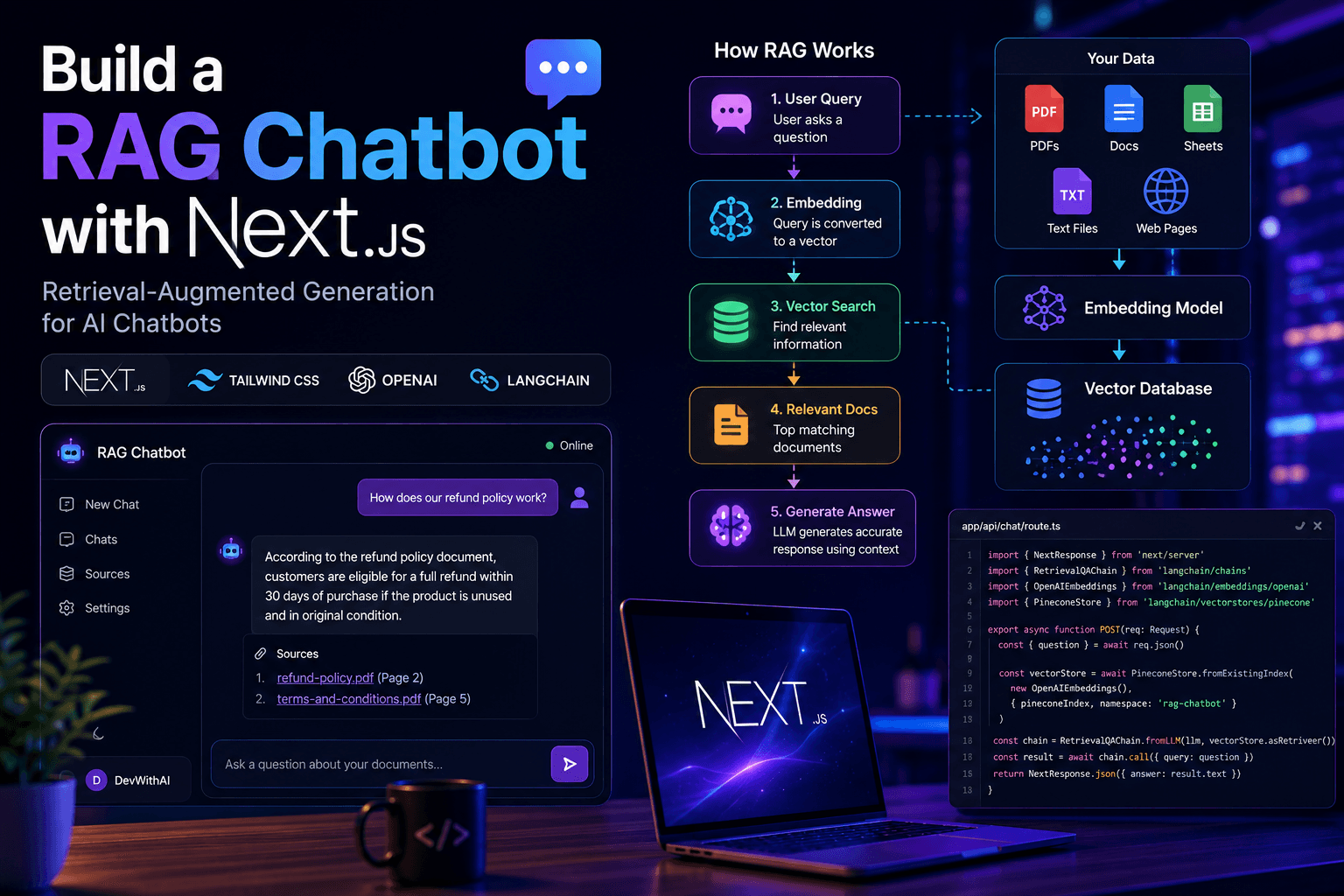
Want to build a chatbot that actually knows your data? This guide walks through building a full RAG chatbot with Next.js, OpenAI, and a vector database from scratch.
Standard AI chatbots are great for general conversations, but they have one major weakness — they don't know anything about your specific data.
That's where Retrieval-Augmented Generation (RAG) comes in.
A RAG chatbot can answer questions about your own documents, product knowledge base, or internal company data by fetching the most relevant content before generating a response.
In this guide, you'll build a fully working RAG chatbot using Next.js, OpenAI, and a vector database — step by step.
What Is RAG?
RAG stands for Retrieval-Augmented Generation.
Instead of relying purely on what the LLM learned during training, a RAG system:
- Converts your documents into vector embeddings
- Stores them in a vector database
- At query time, retrieves the most relevant chunks
- Passes those chunks to the LLM as context
- Returns a grounded, accurate response
This means the chatbot answers questions based on your real data, not hallucinated guesses.
For a deeper conceptual explanation, read RAG Explained for Developers.
What You'll Build
By the end of this guide you'll have:
- A Next.js app with a chat UI
- An API route that performs vector search
- Document ingestion that creates embeddings
- Streaming AI responses powered by OpenAI
Prerequisites
- Node.js 18+ installed
- Basic React and Next.js knowledge
- An OpenAI API key
- Familiarity with REST APIs
Tech Stack
| Layer | Tool |
|---|---|
| Framework | Next.js 14+ (App Router) |
| AI Model | OpenAI GPT-4o |
| Embeddings | OpenAI text-embedding-3-small |
| Vector Store | Chroma (local) |
| Styling | Tailwind CSS |
Step 1: Create the Next.js Project
npx create-next-app@latest rag-chatbot
cd rag-chatbot
When prompted, select:
- TypeScript: No (or Yes if preferred)
- Tailwind CSS: Yes
- App Router: Yes
Step 2: Install Dependencies
npm install openai chromadb @xenova/transformers
openai— OpenAI SDK for chat completions and embeddingschromadb— local vector database client@xenova/transformers— optional local embedding fallback
Step 3: Set Up Environment Variables
Create a .env.local file at the root of your project:
OPENAI_API_KEY=your_openai_api_key_here
Never commit this file to git.
Step 4: Create the Document Ingestion Script
This script reads your documents, generates embeddings, and stores them in Chroma.
Create scripts/ingest.js:
const { ChromaClient } = require("chromadb");
const OpenAI = require("openai");
const fs = require("fs");

const openai = new OpenAI({ apiKey: process.env.OPENAI_API_KEY });
const chroma = new ChromaClient();

const documents = [
  {
    id: "doc1",
    text: "Our return policy allows returns within 30 days of purchase.",
  },
  {
    id: "doc2",
    text: "We offer free shipping on orders over $50 to the continental US.",
  },
  {
    id: "doc3",
    text: "Customer support is available Monday to Friday, 9am to 6pm EST.",
  },
];

async function ingest() {
  const collection = await chroma.getOrCreateCollection({
    name: "knowledge_base",
  });

  for (const doc of documents) {
    const response = await openai.embeddings.create({
      model: "text-embedding-3-small",
      input: doc.text,
    });

    await collection.add({
      ids: [doc.id],
      embeddings: [response.data[0].embedding],
      documents: [doc.text],
    });

    console.log(`Ingested: ${doc.id}`);
  }

  console.log("Ingestion complete.");
}

ingest();
Run it once to populate your vector store:
node scripts/ingest.js
Replace the documents array with your own content — PDFs, markdown files, database records, or any text you want the chatbot to know about.
Step 5: Create the Chat API Route
Create src/app/api/chat/route.js:
import { NextResponse } from "next/server";
import OpenAI from "openai";
import { ChromaClient } from "chromadb";

const openai = new OpenAI({ apiKey: process.env.OPENAI_API_KEY });
const chroma = new ChromaClient();

export async function POST(req) {
  const { message } = await req.json();

  // 1. Embed the user's question
  const embeddingResponse = await openai.embeddings.create({
    model: "text-embedding-3-small",
    input: message,
  });
  const queryEmbedding = embeddingResponse.data[0].embedding;

  // 2. Retrieve the most relevant documents
  const collection = await chroma.getCollection({ name: "knowledge_base" });
  const results = await collection.query({
    queryEmbeddings: [queryEmbedding],
    nResults: 3,
  });

  const context = results.documents[0].join("\n\n");

  // 3. Build the prompt with retrieved context
  const systemPrompt = `You are a helpful assistant. Answer questions using only the context provided below. If the answer is not in the context, say you don't know.

Context:
${context}`;

  // 4. Stream the response
  const stream = await openai.chat.completions.create({
    model: "gpt-4o",
    stream: true,
    messages: [
      { role: "system", content: systemPrompt },
      { role: "user", content: message },
    ],
  });

  const encoder = new TextEncoder();
  const readable = new ReadableStream({
    async start(controller) {
      for await (const chunk of stream) {
        const text = chunk.choices[0]?.delta?.content || "";
        controller.enqueue(encoder.encode(text));
      }
      controller.close();
    },
  });

  return new Response(readable, {
    headers: { "Content-Type": "text/plain; charset=utf-8" },
  });
}
Step 6: Build the Chat UI
Replace the contents of src/app/page.jsx:
"use client";

import { useState, useRef, useEffect } from "react";

export default function ChatPage() {
  const [messages, setMessages] = useState([]);
  const [input, setInput] = useState("");
  const [loading, setLoading] = useState(false);
  const bottomRef = useRef(null);

  useEffect(() => {
    bottomRef.current?.scrollIntoView({ behavior: "smooth" });
  }, [messages]);

  async function sendMessage(e) {
    e.preventDefault();
    if (!input.trim()) return;

    const userMessage = { role: "user", content: input };
    setMessages((prev) => [...prev, userMessage]);
    setInput("");
    setLoading(true);

    const res = await fetch("/api/chat", {
      method: "POST",
      headers: { "Content-Type": "application/json" },
      body: JSON.stringify({ message: input }),
    });

    const reader = res.body.getReader();
    const decoder = new TextDecoder();
    let assistantText = "";

    setMessages((prev) => [...prev, { role: "assistant", content: "" }]);

    while (true) {
      const { done, value } = await reader.read();
      if (done) break;
      assistantText += decoder.decode(value);
      setMessages((prev) => {
        const updated = [...prev];
        updated[updated.length - 1] = {
          role: "assistant",
          content: assistantText,
        };
        return updated;
      });
    }

    setLoading(false);
  }

  return (
    <main className="max-w-2xl mx-auto p-6 flex flex-col h-screen">
      <h1 className="text-2xl font-bold mb-4">RAG Chatbot</h1>

      <div className="flex-1 overflow-y-auto space-y-4 mb-4">
        {messages.map((msg, i) => (
          <div
            key={i}
            className={`p-3 rounded-lg ${
              msg.role === "user"
                ? "bg-blue-100 ml-8"
                : "bg-gray-100 mr-8"
            }`}
          >
            <p className="text-sm font-semibold mb-1 capitalize">{msg.role}</p>
            <p>{msg.content}</p>
          </div>
        ))}
        <div ref={bottomRef} />
      </div>

      <form onSubmit={sendMessage} className="flex gap-2">
        <input
          value={input}
          onChange={(e) => setInput(e.target.value)}
          placeholder="Ask a question about your data..."
          className="flex-1 border rounded-lg px-4 py-2 focus:outline-none"
          disabled={loading}
        />
        <button
          type="submit"
          disabled={loading}
          className="bg-blue-600 text-white px-4 py-2 rounded-lg hover:bg-blue-700 disabled:opacity-50"
        >
          Send
        </button>
      </form>
    </main>
  );
}
Step 7: Run the App
Start Chroma in a separate terminal:
chroma run --path ./chroma_db
Then start Next.js:
npm run dev
Open http://localhost:3000 and ask your chatbot a question about the documents you ingested.
How the RAG Pipeline Works
User Question
     ↓
Embed the question (OpenAI)
     ↓
Search vector database (Chroma)
     ↓
Retrieve top 3 relevant chunks
     ↓
Build prompt with context
     ↓
Stream GPT-4o response
     ↓
Display to user
Ingesting Real Documents
To ingest PDF or markdown files instead of hardcoded text, update your ingestion script to use a document loader.
For PDFs:
npm install pdf-parse
const pdfParse = require("pdf-parse");
const fs = require("fs");

const buffer = fs.readFileSync("./docs/handbook.pdf");
const data = await pdfParse(buffer);
const text = data.text;
Then split text into chunks (e.g. 500 characters each) and embed each chunk separately. Smaller chunks give more precise retrieval results.
RAG vs Fine-Tuning
| Approach | Best For | Cost | Updates |
|---|---|---|---|
| RAG | Frequently changing data | Low | Instant |
| Fine-tuning | Style and behavior | High | Requires retraining |
For most real-world applications, RAG is the right choice because your data changes often and fine-tuning doesn't handle retrieval at all.
Common Issues
Chroma not connecting — make sure the Chroma server is running before starting Next.js.
Empty context returned — run your ingestion script first. If still empty, check your collection name matches exactly.
Slow responses — reduce nResults in the query, or switch to a smaller embedding model.
Frequently Asked Questions
Can I use a different vector database?
Yes. Pinecone, Weaviate, and Qdrant are popular hosted alternatives. The ingestion and query logic is similar — only the client library changes.
Can I use a different LLM?
Yes. Swap gpt-4o for any model that supports the OpenAI chat completions format, including open-source models via Ollama.
How do I handle large documents?
Split them into chunks of 300–500 tokens before embedding. Each chunk becomes a separate document in the vector store.
Is this production ready?
The pattern is production ready. For scale, replace local Chroma with a hosted vector database and add authentication to your API route.
Further Reading
- RAG Explained for Developers
- Build an AI Chatbot with Next.js
- Vector Databases Explained
- OpenAI API Complete Guide
- LangChain Tutorial for Developers
Final Thoughts
RAG is one of the most practical AI patterns for real-world applications.
By combining a vector database with an LLM, you get a chatbot that answers accurately from your own data — without retraining, without hallucinations, and without giving the model access to your entire knowledge base upfront.
Once you understand the pipeline, you can extend it with conversation history, multi-document sources, re-ranking, and more.
Start with the basic setup in this guide, then build from there.
Related Articles
More from the AI + Code category
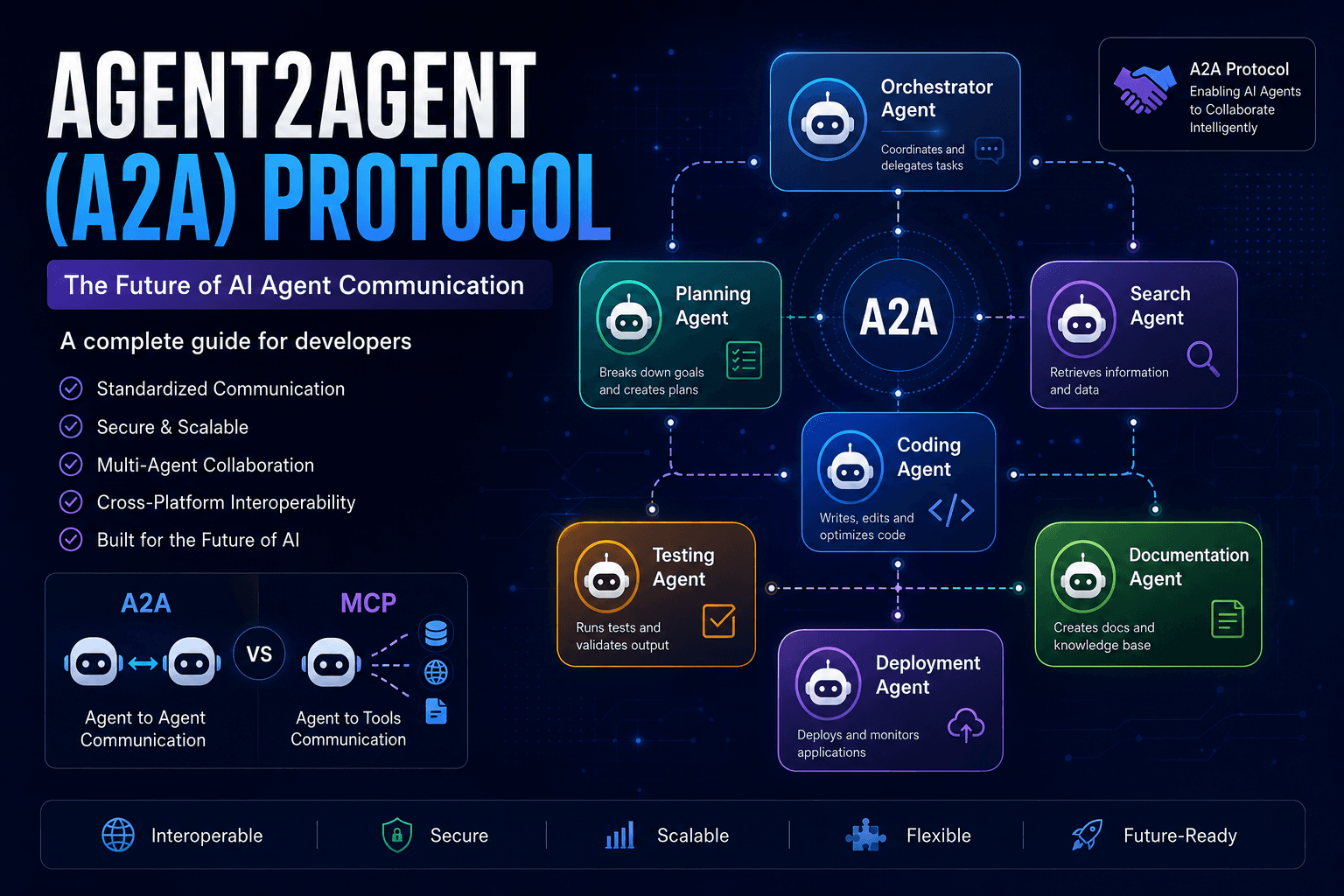
Agent2Agent (A2A) Protocol Explained: The Complete Developer Guide for 2026
Discover how the Agent2Agent (A2A) Protocol enables AI agents to collaborate securely and efficiently. Learn its architecture, use cases, benefits, and how it compares with MCP.
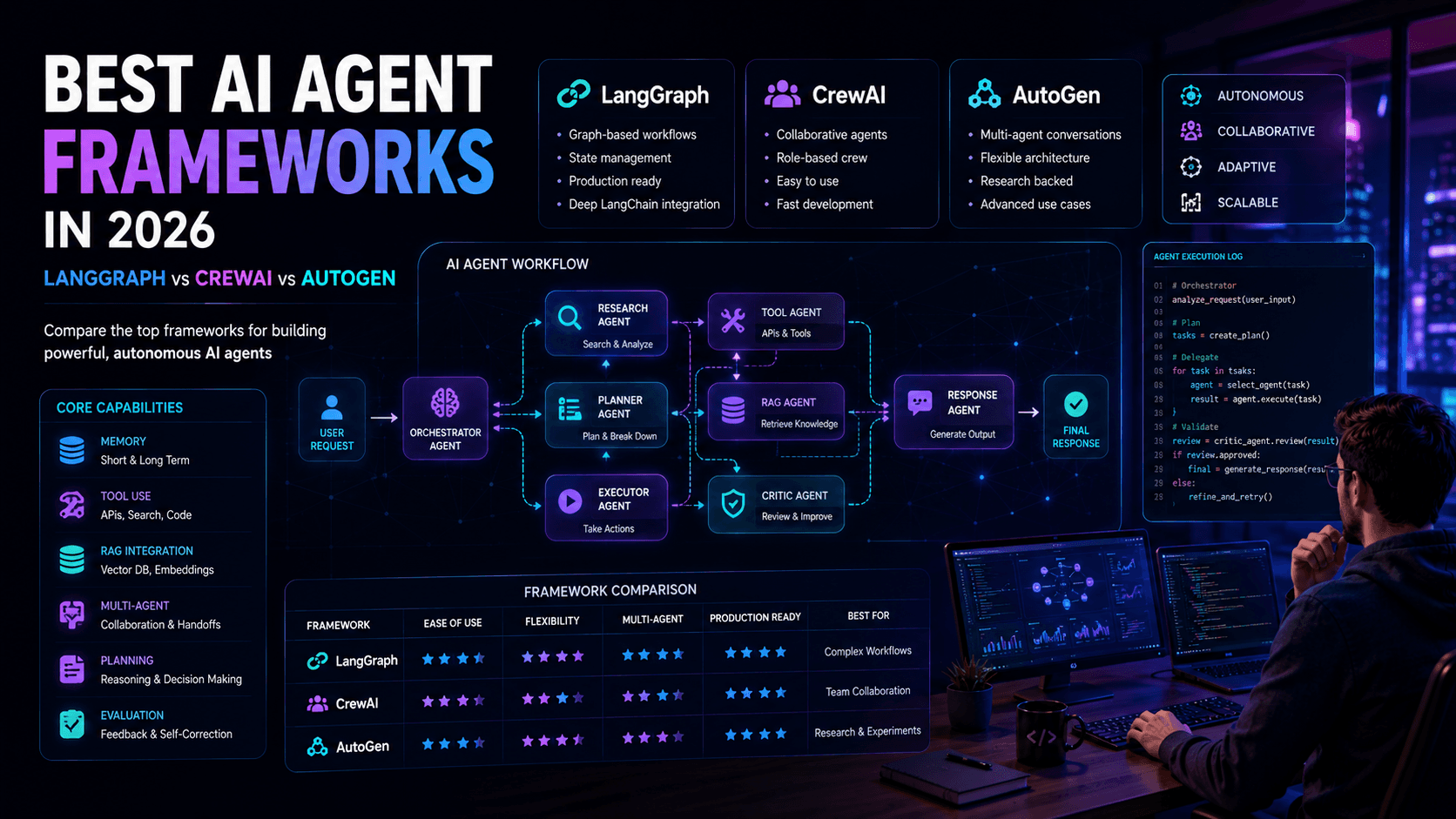
Best AI Agent Frameworks in 2026: LangGraph vs CrewAI vs AutoGen
Looking to build AI agents? This guide compares LangGraph, CrewAI, AutoGen, and other leading AI agent frameworks to help developers choose the right solution.
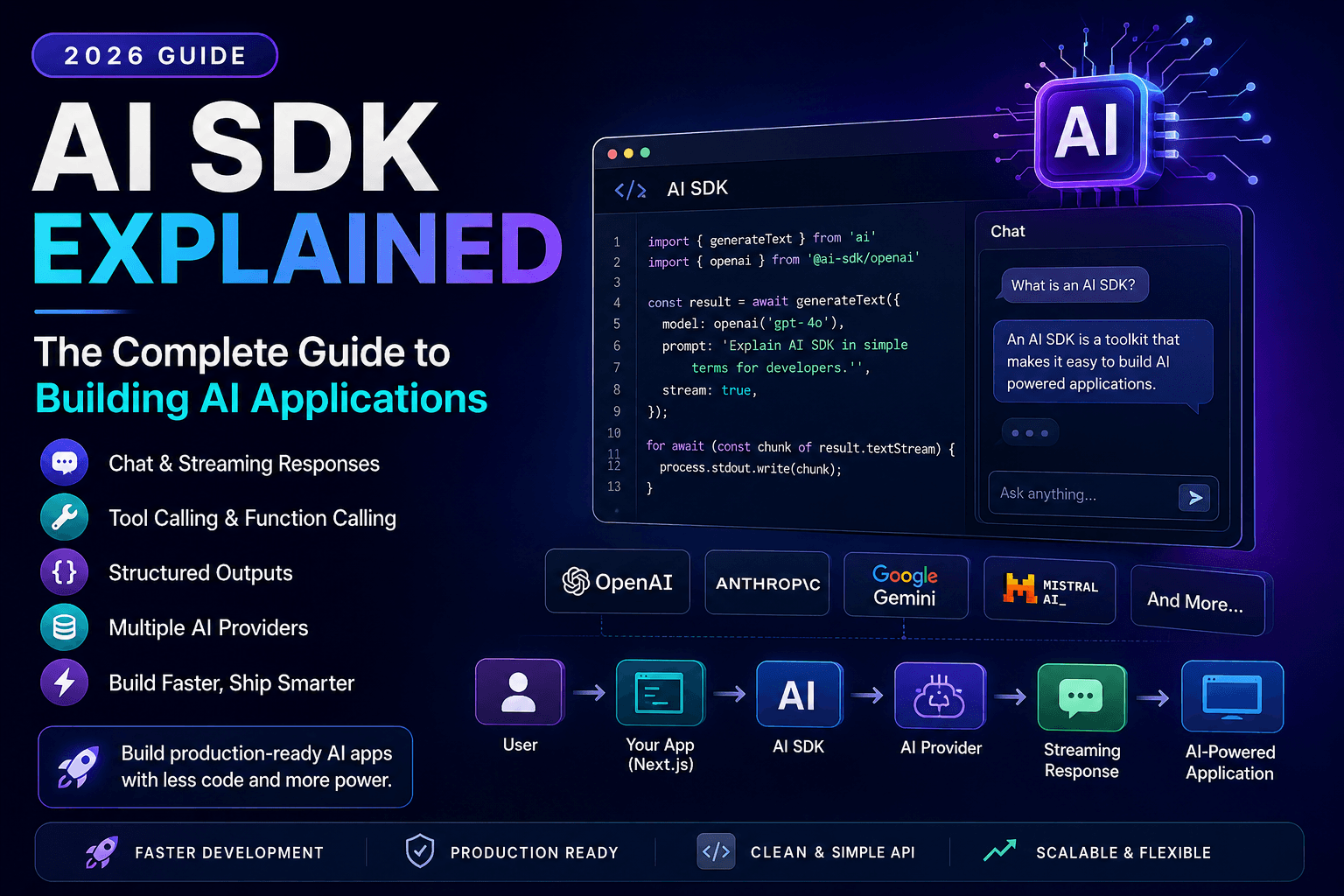
AI SDK Explained: The Complete Guide to Building AI Applications in 2026
Discover how AI SDKs simplify building AI-powered applications. Learn streaming responses, tool calling, chat interfaces, structured outputs, and production best practices.